
🕒 20-25 min read • Updated: Aug 2026
Table of Contents
Introduction
Introduction
Artificial intelligence is changing how people learn, work, create, and solve problems. Among the many AI tools available today, ChatGPT has become one of the most popular and beginner-friendly options. Whether you’re writing an email, learning a new skill, analyzing documents, brainstorming ideas, or generating images, ChatGPT can help you complete tasks faster and more efficiently.
However, many new users only scratch the surface of what ChatGPT can do. They ask a few simple questions, receive answers, and never discover powerful features like file analysis, image generation, projects, memory, or advanced prompting techniques.
This guide is designed to change that.
Instead of providing a basic overview, this comprehensive beginner’s guide will walk you through everything you need to know—from creating your account and understanding the interface to writing effective prompts, working with files, organizing projects, and using ChatGPT confidently in your daily life.
Whether you’re a student, professional, educator, business owner, content creator, or simply curious about AI, you’ll learn practical skills that you can start using immediately.
By the end of this guide, you’ll understand not only what ChatGPT is, but also how to use it effectively, safely, and responsibly.
Key Takeaways
- Learn what ChatGPT is and how it works in simple terms.
- Create and set up your ChatGPT account.
- Understand every part of the ChatGPT interface.
- Write better prompts to get more useful responses.
- Upload and analyze documents, spreadsheets, PDFs, and images.
- Use ChatGPT’s Memory feature to personalize your experience.
- Organize ongoing work with Projects.
- Explore image generation, voice conversations, and other AI capabilities.
- Follow best practices to improve accuracy and protect your privacy.
- Discover practical ways to use ChatGPT for work, study, creativity, and everyday tasks.
Table of Contents
- What Is ChatGPT?
- How Does ChatGPT Work?
- Creating Your ChatGPT Account
- ChatGPT Free vs Paid Plans
- Understanding the ChatGPT Interface
- Starting Your First Conversation
- How to Write Better Prompts
- Uploading and Working with Files
- Creating and Editing Images
- Understanding ChatGPT Memory
- Organizing Your Work with Projects
- Voice Conversations
- Custom GPTs
- Real-World Use Cases
- Best Practices
- Common Mistakes Beginners Make
- Limitations of ChatGPT
- Privacy and Security Tips
- Frequently Asked Questions
- Continue Learning
What Is ChatGPT?
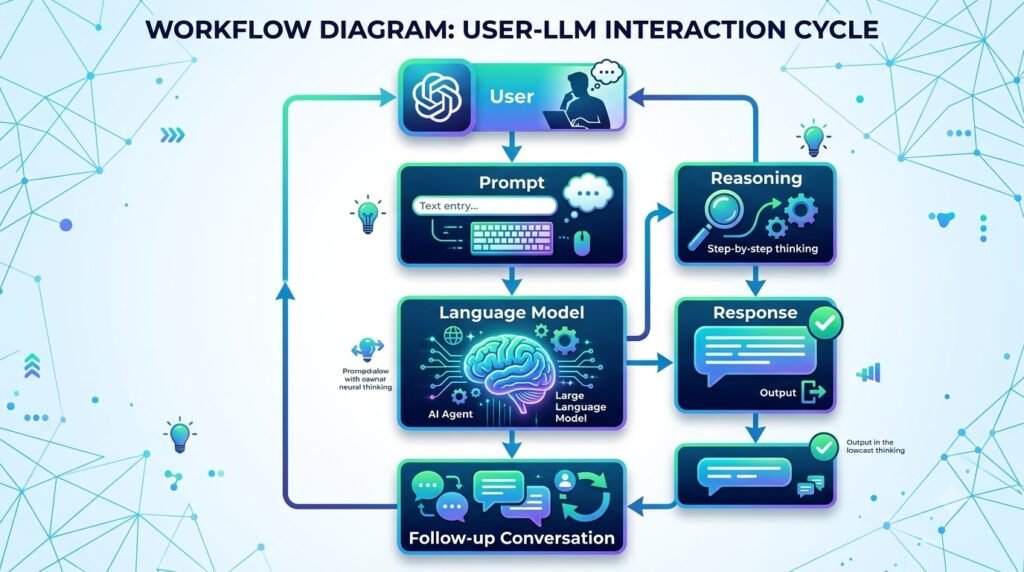
ChatGPT is an AI-powered conversational assistant developed by OpenAI. It uses advanced language models to understand natural language and generate human-like responses to a wide variety of questions and tasks.
Unlike a traditional search engine that mainly provides links to websites, ChatGPT is designed to have conversations. You can ask follow-up questions, refine your requests, and work through complex problems step by step.
For example, instead of searching:
“How do I write a professional resignation email?”
You can ask ChatGPT:
“Write a polite resignation email for a software engineer leaving after three years. Keep it professional and express gratitude.”
ChatGPT will generate a complete draft, and you can continue the conversation by asking it to make the tone more formal, shorten the message, or tailor it to your situation.
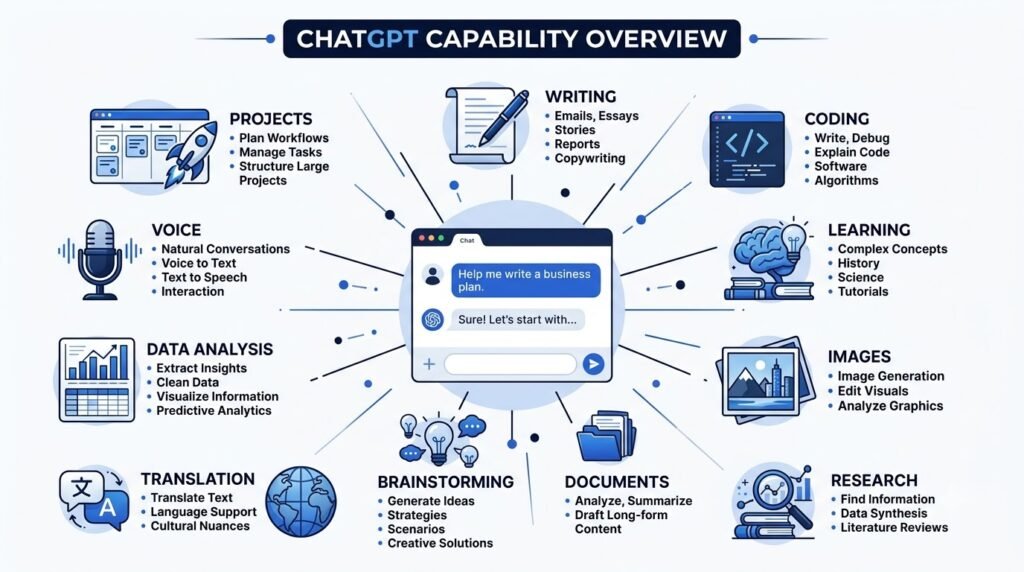
This conversational approach makes ChatGPT useful for a wide range of activities, including:
- Answering questions
- Explaining difficult concepts
- Writing and editing content
- Brainstorming ideas
- Learning new skills
- Programming assistance
- Research support
- Language translation
- Summarizing long documents
- Generating and editing images
- Analyzing uploaded files
ChatGPT Is More Than a Chatbot
Although many people describe ChatGPT as a chatbot, that term doesn’t fully capture its capabilities.
Modern versions of ChatGPT can:
- Understand text, images, and uploaded documents.
- Generate original content.
- Analyze data from spreadsheets.
- Help write and debug code.
- Create images from text descriptions.
- Assist with planning, learning, and decision-making.
- Maintain context across a conversation to provide more relevant responses.
As AI technology continues to evolve, ChatGPT is becoming a versatile digital assistant rather than just a question-and-answer tool.
Tip: Think of ChatGPT as a collaborative assistant. The better information and context you provide, the more useful its responses are likely to be.
What Can You Use ChatGPT For?
One of ChatGPT’s biggest strengths is its flexibility. Here are just a few examples of how beginners use it every day:
| Task | Example |
| Learning | Explain photosynthesis in simple terms. |
| Writing | Draft emails, essays, or blog posts. |
| Productivity | Summarize meeting notes or create to-do lists. |
| Research | Compare concepts and organize information. |
| Coding | Explain code, debug errors, or generate examples. |
| Creativity | Brainstorm stories, business names, or marketing ideas. |
| Image Creation | Generate illustrations from text prompts. |
| Data Analysis | Review spreadsheets, charts, and reports. |
Because ChatGPT supports so many different tasks, it’s useful for students, professionals, educators, entrepreneurs, and lifelong learners alike.
Continue Learning: If you’re new to AI, start with Naeveor’s What Is Artificial Intelligence?, What Is Generative AI?, and What Is ChatGPT? articles before diving deeper into advanced features.
How Does ChatGPT Work?
Understanding how ChatGPT works doesn’t require a background in computer science. While the underlying technology is complex, the core idea is surprisingly straightforward.
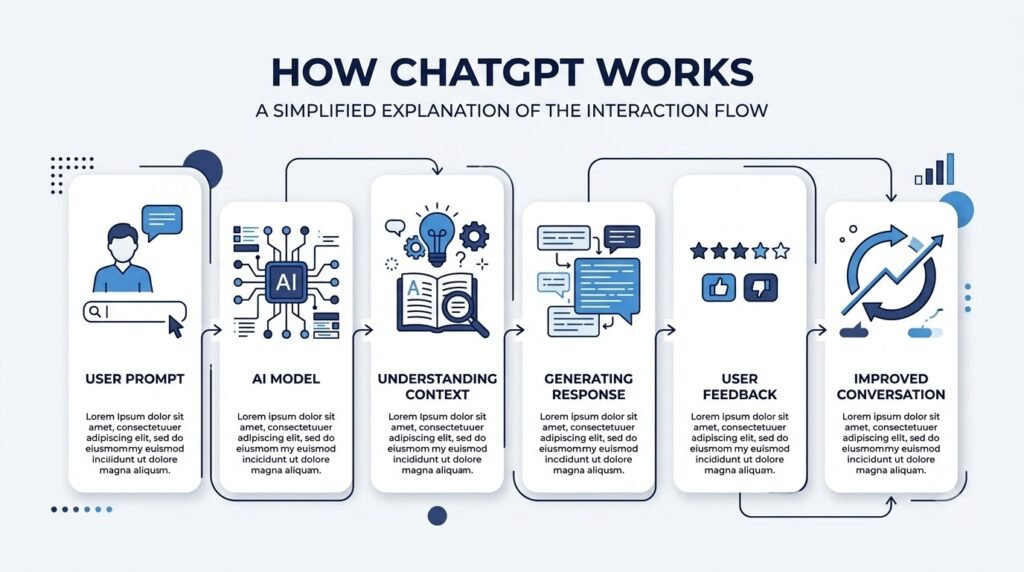
At a high level, ChatGPT reads the text you provide, identifies patterns based on the information it learned during training, and predicts the most appropriate next words to generate a helpful response.
Think of it as a highly advanced language system that has learned relationships between words, sentences, ideas, and concepts from a vast amount of text. Instead of searching a database for predefined answers, it generates responses dynamically based on your prompt and the context of the conversation.
A Simple Analogy
Imagine you’re talking to an experienced tutor who has read millions of books, articles, and examples. When you ask a question, the tutor doesn’t search the internet for an answer. Instead, they draw on everything they’ve learned to explain the topic in a way that fits your question.
ChatGPT works in a similar way. It uses patterns learned during training to generate responses that are relevant to your request.
While this analogy simplifies the process, it helps illustrate why ChatGPT can answer questions, explain concepts, write content, and adapt to different conversation styles.
The Four-Step Process
Here’s a simplified view of what happens when you send a prompt:
- You enter a prompt. This could be a question, instruction, or request.
- The AI interprets your input. It identifies your intent, important details, and the conversation context.
- The language model generates a response. It predicts the most suitable sequence of words based on its training and your prompt.
- You receive the answer. You can then ask follow-up questions, request changes, or continue the conversation.
This iterative process is one of ChatGPT’s greatest strengths. Rather than expecting a perfect answer on the first try, you can refine your requests and build on previous responses to achieve better results.
Why Context Matters
One of the key differences between ChatGPT and a traditional search engine is its ability to maintain context within a conversation.
For example, if you ask:
“Explain machine learning in simple terms.”
and then follow up with:
“Can you give me a real-world example?”
ChatGPT understands that your second question refers to machine learning, even though you didn’t repeat the topic.
This conversational memory within a chat makes interactions feel more natural and allows you to solve complex problems step by step.
Creating Your ChatGPT Account
Getting started with ChatGPT is straightforward. You don’t need any technical knowledge or programming experience. In just a few minutes, you can create an account and begin exploring what AI can do.
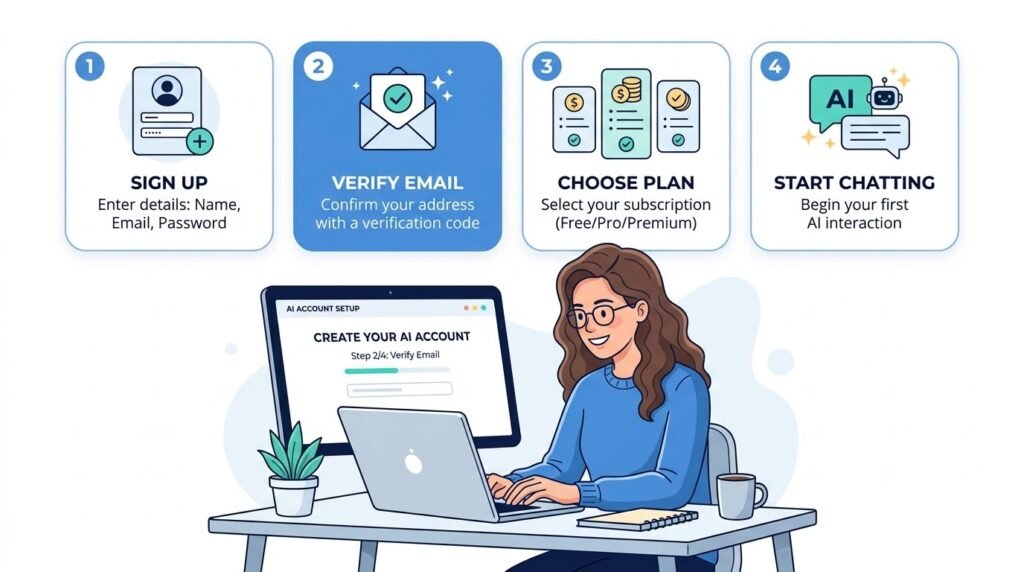
Step 1: Visit the Official Website
Open your web browser and go to the official ChatGPT website provided by OpenAI.
Tip: Always use the official ChatGPT website or the official mobile app to avoid phishing websites or unofficial copies.
Step 2: Create an Account
Select Sign Up if you’re new to ChatGPT.
You can typically create an account using:
- An email address
- A Google account
- An Apple account
- Other supported sign-in methods depending on your region
After registering, you may be asked to verify your email address before using ChatGPT.
Step 3: Complete Basic Setup
After signing in, you’ll be guided through a few simple steps.
Depending on the current version of ChatGPT, you may be asked to:
- Choose your preferred display name
- Accept the terms of use
- Review privacy information
- Select your preferred language
- Learn about new features
This setup usually takes only a few minutes.
Step 4: Start Your First Chat
Once setup is complete, you’ll see the main ChatGPT interface.
Click New Chat and type a simple prompt such as:
Explain climate change in simple words.
Or
Help me write a professional email.
Congratulations—you’ve started your first AI conversation.
Do You Need to Download ChatGPT?
Not necessarily.
You can use ChatGPT directly in your web browser without installing anything.
Official mobile apps are also available for supported devices, allowing you to continue conversations across multiple devices.
Your chats are generally synchronized when you’re signed in to the same account.
ChatGPT Free vs Paid Plans
One of the first questions beginners ask is:
Should I use the free version or pay for ChatGPT?
The answer depends on how often you use ChatGPT and which features you need.
For many beginners, the free version is an excellent place to start. As your needs grow, you can decide whether upgrading makes sense.
ChatGPT Free vs Paid
| Feature | Free Plan | Paid Plan |
| Ask questions | ✅ | ✅ |
| Write content | ✅ | ✅ |
| Brainstorm ideas | ✅ | ✅ |
| File uploads | Available with limits | Higher limits |
| Image generation | Available with limits | Higher limits |
| Faster performance | Standard | Priority access |
| Access to advanced AI models | Limited | Broader access |
| Voice conversations | Basic availability | Expanded capabilities |
| Projects | Available depending on plan | More comprehensive |
| Memory | Available where supported | Enhanced experience |
Note: Features, limits, and plan names may change over time. Always check the latest information before subscribing.
Who Should Use the Free Plan?
The free plan is ideal if you:
- Are completely new to AI
- Occasionally ask questions
- Need help writing emails
- Want homework assistance
- Brainstorm ideas
- Learn new topics
- Experiment before paying
Most beginners won’t outgrow the free plan immediately.
Who Should Consider a Paid Plan?
A paid subscription may be worthwhile if you:
- Use ChatGPT every day
- Create professional content
- Analyze large documents
- Generate many images
- Need faster responses
- Work on long-term projects
- Depend on advanced AI capabilities for your job or business
For professionals, the productivity gains can often outweigh the subscription cost.
Understanding the ChatGPT Interface
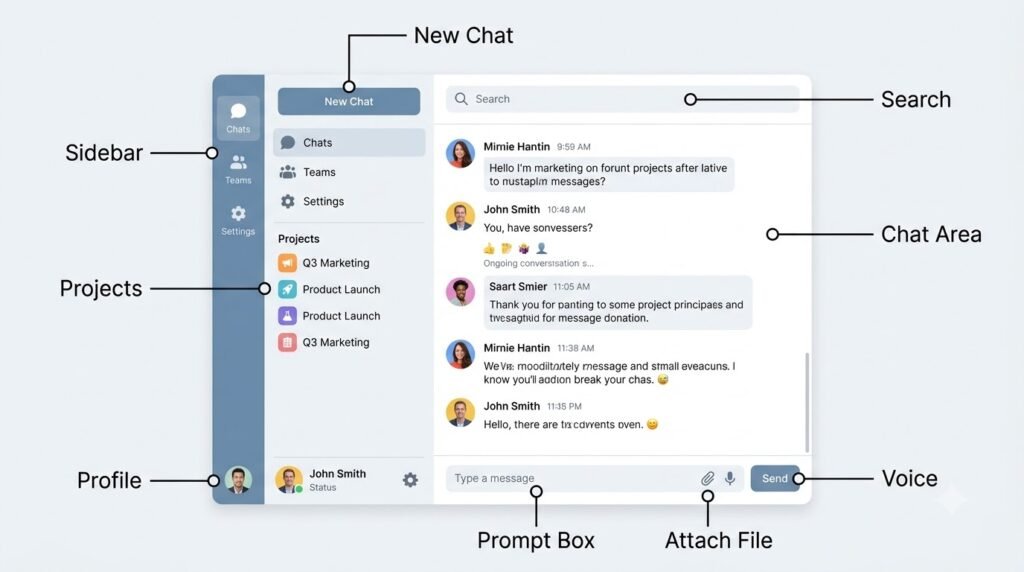
When you first open ChatGPT, the interface may look simple, but each area has a specific purpose.
Learning what each section does will help you work more efficiently.
The Sidebar
The sidebar acts as your navigation panel.
Here you’ll typically find:
- Previous conversations
- Projects
- New Chat
- Search
- Settings
- Your profile
Think of it as your AI workspace.
New Chat
The New Chat button starts a fresh conversation.
Use a new chat when:
- You’re switching topics.
- Starting a new project.
- Want cleaner context.
- Need unrelated answers.
Keeping separate chats organized makes it easier to find information later.
Conversation History
Every conversation is saved in your chat history unless you delete it or use temporary chats (where available).
This allows you to:
- Return to previous work
- Continue unfinished conversations
- Reuse prompts
- Review AI-generated content
Many experienced users treat ChatGPT as a searchable knowledge notebook.
The Prompt Box
The prompt box is where you communicate with ChatGPT.
You can type:
Questions
What is blockchain?
Instructions
Write a thank-you email.
Requests
Summarize this article.
Creative ideas
Give me ten YouTube video ideas about AI.
The quality of your prompt often has the biggest impact on the quality of the response.
We’ll explore prompting in depth later in this guide.
Attachment Button
The attachment button lets you upload files for ChatGPT to analyze.
Depending on your plan and current features, you can often upload:
- PDFs
- Word documents
- Excel spreadsheets
- CSV files
- PowerPoint presentations
- Images
- Screenshots
This transforms ChatGPT from a conversational assistant into a document analysis tool.
Image Generation
Modern versions of ChatGPT can also create images from text descriptions.
Instead of searching for existing pictures, ChatGPT can generate original visuals based on your instructions.
Example:
Create a minimalist illustration of a robot teaching students in a classroom.
You’ll learn more about writing image prompts later in this guide.
Voice Conversations
If voice mode is available on your device and plan, you can talk naturally with ChatGPT instead of typing.
Voice conversations are useful for:
- Practicing languages
- Brainstorming ideas
- Asking quick questions
- Hands-free learning
- Interview preparation
It feels much closer to speaking with a digital assistant than using a traditional chatbot.
Projects
Projects help organize related conversations, files, and instructions into dedicated workspaces.
Instead of mixing everything into one long chat history, you can create separate projects for different goals.
For example:
Student
- Biology notes
- Essay drafts
- Exam preparation
Small Business
- Marketing ideas
- Customer emails
- Product descriptions
Content Creator
- YouTube scripts
- Blog articles
- Thumbnail ideas
- Social media posts
Projects make it easier to maintain context across related tasks without repeatedly explaining your goals.
Search
As your chat history grows, finding old conversations manually becomes difficult.
The search feature lets you quickly locate previous chats by searching for keywords, topics, or phrases.
For example, searching for “resume” can help you find an older conversation where ChatGPT helped improve your CV.
Settings
The Settings menu allows you to customize your ChatGPT experience.
Depending on your account and available features, you may be able to manage:
- Appearance (light or dark mode)
- Language preferences
- Notifications
- Connected apps
- Memory settings
- Data controls
- Privacy preferences
- Subscription details
- Keyboard shortcuts
It’s worth spending a few minutes exploring these options to tailor ChatGPT to your workflow.
Tip: Review your privacy and data settings periodically, especially if you use ChatGPT for work or school.
Settings Every Beginner Should Know
Before diving into advanced features, take a moment to familiarize yourself with a few key settings.
Memory
If available, Memory allows ChatGPT to remember helpful details across conversations, such as your preferred writing style or recurring projects.
You’ll learn more about Memory later in this guide.
Personalization
Some versions of ChatGPT allow you to specify how you’d like responses to be written.
For example, you can indicate that you prefer:
- Short answers
- Detailed explanations
- Professional tone
- Beginner-friendly language
- Bullet-point summaries
These preferences can help make responses more consistent.
Data Controls
Review your data settings to understand how your conversations are handled.
Depending on your preferences and available options, you may be able to:
- Manage chat history
- Use temporary chats
- Export your data
- Delete conversations
- Adjust personalization settings
Understanding these controls is an important part of using AI responsibly.
Starting Your First Conversation
Now that you’re familiar with the interface, it’s time to start chatting.
Many beginners ask very short questions like:
AI?
While ChatGPT will still respond, adding a little more detail usually leads to much better answers.
Here are a few beginner-friendly prompts to try:
Learn Something New
Explain how solar panels work using simple language and everyday examples.
Improve Your Writing
Rewrite this email to sound more professional while keeping it friendly.
Plan Your Day
Help me create a productive schedule for studying four hours each day.
Brainstorm Ideas
Suggest ten unique YouTube channel ideas about technology and education.
Solve a Problem
My laptop is running slowly after a recent update. What are some common causes and troubleshooting steps?
Follow Up Instead of Starting Over
One of ChatGPT’s biggest advantages is that you can continue the conversation instead of writing a completely new prompt each time.
For example:
You: Explain photosynthesis.
ChatGPT: (Provides an explanation.)
You: Can you simplify that for a 10-year-old?
ChatGPT: (Adapts the explanation.)
You: Now give me a real-world example.
ChatGPT: (Builds on the same conversation.)
This conversational flow makes learning more natural and efficient than repeatedly starting from scratch.
How to Write Better Prompts
If there’s one skill that can dramatically improve your experience with ChatGPT, it’s learning how to write effective prompts.
Many beginners believe ChatGPT gives “good” or “bad” answers randomly. In reality, the quality of the response often depends on the quality of the prompt.
Think of a prompt as an instruction you give to a human assistant. The clearer your request, the easier it is for the assistant to understand your expectations and deliver useful results.
This doesn’t mean every prompt needs to be long or complicated. It means providing enough context so ChatGPT can understand what you want, who it’s for, and how you’d like the response presented.
What Is a Prompt?
A prompt is any instruction, question, or request you give to ChatGPT.
It can be as simple as:
What is artificial intelligence?
Or more detailed:
Explain artificial intelligence to a high school student using simple language and everyday examples. Keep the explanation under 300 words.
Both are prompts—but the second gives ChatGPT much more context, making it easier to produce a response that matches your needs.
Why Prompt Quality Matters
Imagine asking a chef:
“Cook something.”
You might get a delicious meal—or something you don’t like—because the request is vague.
Now imagine saying:
“Please prepare a vegetarian pasta for two people, mildly spicy, ready in under 30 minutes.”
The chef has clear instructions and can create something much closer to what you expect.
ChatGPT works in a similar way. The more helpful context you provide, the more relevant and useful the response is likely to be.
The Anatomy of a Great Prompt
Most effective prompts include some combination of the following elements:
| Element | Purpose | Example |
| Goal | What you want ChatGPT to do | Write a blog post |
| Context | Background information | The audience is beginners |
| Constraints | Rules or limits | Keep it under 800 words |
| Tone | Writing style | Professional but friendly |
| Format | Desired output | Bullet points and headings |
| Audience | Who it’s for | Small business owners |
You don’t always need every element, but including them often leads to more accurate and tailored responses.
A Simple Prompt Framework
One of the easiest frameworks for beginners is:
Task → Context → Requirements → Output Format
Let’s see how this works.
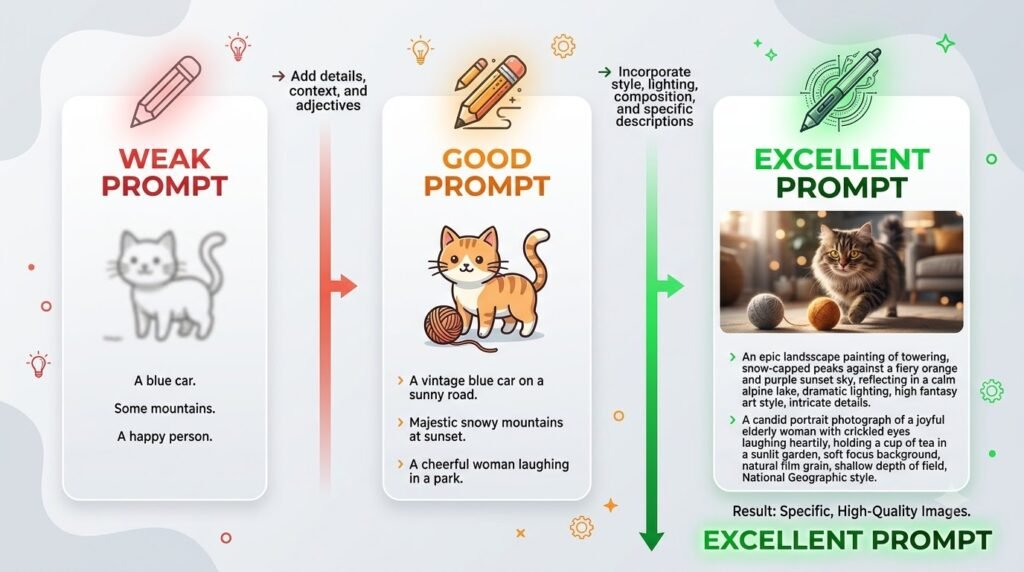
Example 1: Weak Prompt
Write about climate change.
This leaves many questions unanswered. What kind of writing? Who is the audience? How long should it be?
Example 2: Better Prompt
Write a 500-word article explaining climate change for high school students using simple language.
Now ChatGPT knows:
- The task
- The audience
- The length
- The complexity
Example 3: Excellent Prompt
Write a 500-word article explaining climate change for high school students. Use simple language, include three real-world examples, add clear headings, and finish with five key takeaways.
This prompt provides clear expectations, making it easier for ChatGPT to deliver a structured and useful response.
Tip: You don’t need to write perfect prompts. Start with a basic request, review the response, and refine it through follow-up questions.
Six Ways to Improve Your Prompts
1. Be Specific
Specific prompts usually produce better results than broad or vague ones.
Instead of:
Tell me about marketing.
Try:
Explain digital marketing for a small bakery that’s opening its first online store.
The second prompt gives ChatGPT a clear audience and context.
2. Provide Context
Context helps ChatGPT understand your situation.
Instead of:
Write an email.
Try:
Write a polite email to a client explaining that their project will be delayed by two days because of unexpected technical issues.
Adding context often leads to more natural and relevant responses.
3. Define the Audience
If you’re creating content, specify who it’s for.
Examples:
- Explain this to a 10-year-old.
- Write for university students.
- Assume the reader has no technical background.
- Create instructions for first-time users.
This helps ChatGPT adjust the complexity and tone of its response.
4. Specify the Output Format
Don’t assume ChatGPT knows how you want the answer presented.
For example, you can request:
- A table
- A checklist
- Bullet points
- A step-by-step guide
- A professional email
- A lesson plan
- A comparison chart
- A JSON structure (for technical tasks)
Example
Instead of:
Compare electric and hybrid cars.
Try:
Compare electric and hybrid cars in a table showing cost, maintenance, fuel efficiency, environmental impact, and ideal users.
5. Set Constraints
Constraints help define boundaries.
Examples include:
- Maximum word count
- Reading level
- Number of examples
- Time limits
- Budget limits
- Specific formatting requirements
For example:
Create a one-week meal plan for a family of four with a budget of $100.
Without the budget, the suggestions might not match your needs.
6. Ask Follow-Up Questions
One of ChatGPT’s biggest strengths is that you can build on previous responses.
Suppose ChatGPT writes a blog introduction.
Instead of starting a new chat, you could ask:
- Make it shorter.
- Add a stronger hook.
- Use simpler language.
- Include a statistic.
- Rewrite it in a more conversational tone.
Each follow-up helps refine the output without repeating your original request.
Practical Prompt Examples
Here are a few examples you can adapt for your own use.
Learning
Explain blockchain using everyday analogies. Assume I have no prior knowledge.
Writing
Rewrite this paragraph to improve clarity while keeping the tone professional and friendly.
Studying
Create a quiz with ten multiple-choice questions based on these notes.
Programming
Explain what this Python function does and suggest ways to improve readability.
Business
Create a marketing plan for a local coffee shop with a limited advertising budget.
Travel
Plan a three-day itinerary for Tokyo focused on history, local food, and public transportation.

Prompting for Different Types of Tasks
The way you write prompts can vary depending on the task.
Brainstorming
When generating ideas, encourage creativity.
Example:
Suggest 20 unique names for a productivity app aimed at university students. Each name should be short, memorable, and easy to pronounce.
Summarization
Be clear about the level of detail you need.
Example:
Summarize this research paper in five bullet points. Focus on the main findings and avoid technical jargon.
Analysis
Specify what you’d like ChatGPT to analyze.
Example:
Review this business proposal and identify its strengths, weaknesses, and opportunities for improvement.
Role-Playing
ChatGPT can respond from different perspectives.
Example:
Act as an experienced career coach. Review my resume and suggest improvements for a software engineering position.
Role prompts can make feedback more focused, but remember that ChatGPT is simulating expertise rather than replacing qualified professionals.
Common Prompting Mistakes
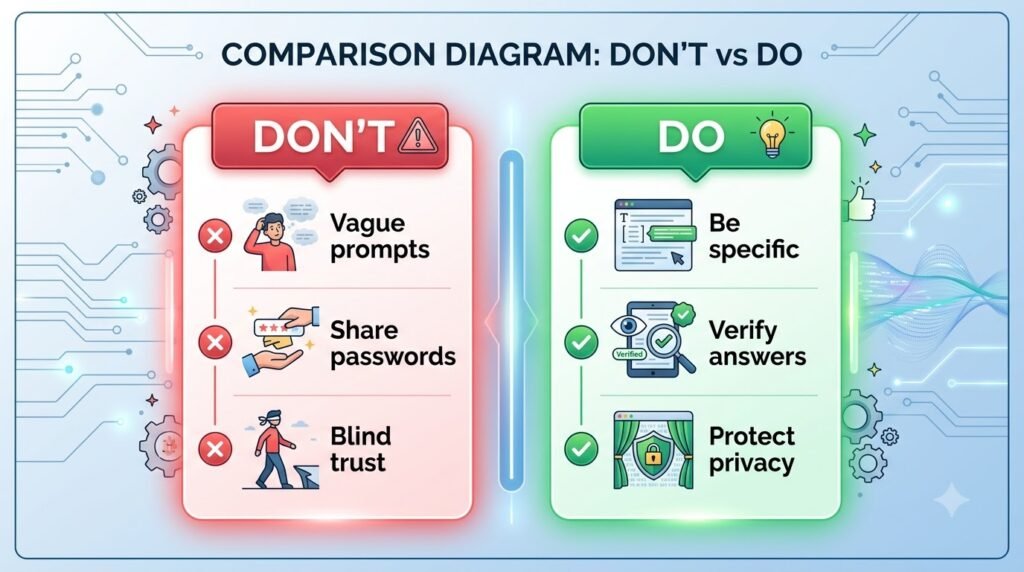
Even experienced users make mistakes. Here are some of the most common ones to avoid.
Being Too Vague
Help me.
Instead, explain what you need help with.
Asking Too Many Unrelated Questions
Instead of combining several topics into one prompt, separate them into individual tasks.
This makes it easier for ChatGPT to produce organized responses.
Expecting Perfect Accuracy
ChatGPT can make mistakes or provide incomplete information.
For important decisions—especially related to health, law, finance, or safety—verify the information using reliable sources.
Forgetting to Mention the Audience
A response written for children will be very different from one intended for experienced professionals.
Always specify your audience when it matters.
Assuming the First Answer Is Final
The first response is often just the starting point.
Experienced users refine answers through conversation by asking follow-up questions, requesting revisions, or changing the format.
Prompt Templates You Can Reuse
These simple templates work well for many everyday tasks.
Learning Template
Explain [topic] in simple language for a beginner. Include three examples and a short summary.
Writing Template
Write a [document type] about [topic] for [audience] using a [tone] tone. Keep it under [length].
Research Template
Summarize this [document/article]. Highlight the main ideas, important facts, and practical takeaways.
Planning Template
Create a step-by-step plan for [goal]. Assume I have no prior experience and explain each step clearly.
Practice Exercise
Before moving to the next section, try writing prompts for these scenarios:
- Ask ChatGPT to explain a complex topic in simple language.
- Request a one-week study plan for an upcoming exam.
- Upload an article and ask for a summary.
- Brainstorm ten business ideas based on your interests.
- Rewrite a paragraph to improve clarity and readability.
The more you practice writing prompts, the more naturally you’ll learn how to communicate with AI.
Continue Learning: If you’d like to explore prompting in greater depth, read Naeveor’s What Is Prompt Engineering?, How to Write Better AI Prompts, Prompt Engineering Techniques, Prompt Templates, Prompt Engineering Mistakes, and Zero-Shot vs. Few-Shot Prompting. These articles build on the concepts introduced here and will help you become a more effective AI user.
Uploading and Working with Files
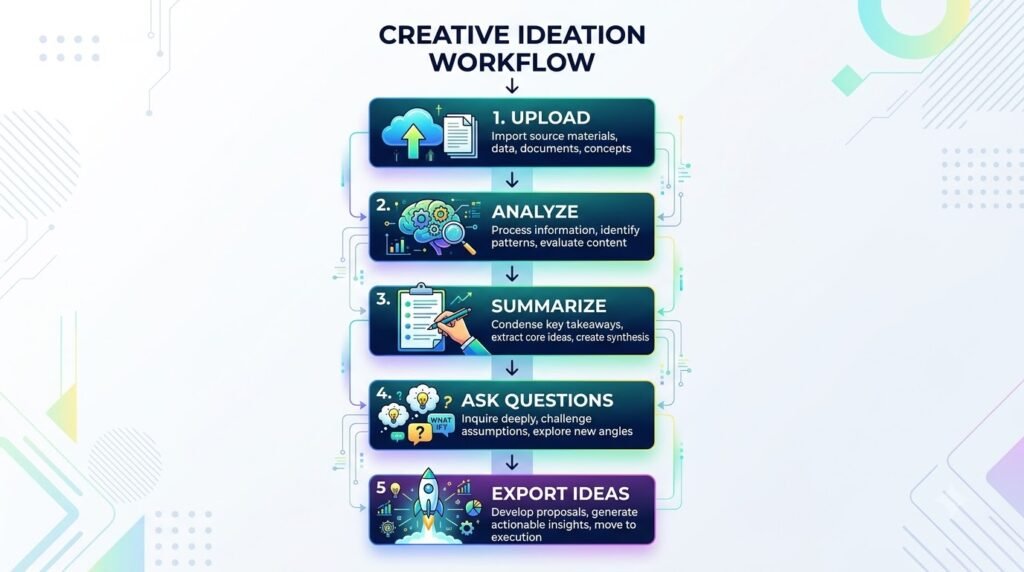
One of ChatGPT’s most powerful capabilities is its ability to work with uploaded files. Instead of copying and pasting large amounts of text into the chat, you can upload documents directly and ask ChatGPT to analyze, summarize, explain, or transform their contents.
For students, professionals, researchers, and business owners, this feature can save significant time and make it easier to work with complex information.
Tip: Don’t think of ChatGPT as just a writing assistant. It’s also a document analysis tool that can help you understand and organize information more efficiently.
What Types of Files Can ChatGPT Work With?
Depending on your plan and the features available to your account, ChatGPT can typically work with a variety of file types, including:
| File Type | Common Uses |
| Summarize reports, research papers, manuals, ebooks | |
| Microsoft Word (.docx) | Edit, rewrite, proofread, or summarize documents |
| Excel (.xlsx) | Analyze data, explain formulas, identify trends |
| CSV | Explore datasets, generate charts, answer questions |
| PowerPoint (.pptx) | Summarize presentations, improve slides |
| Text Files (.txt) | Analyze notes or logs |
| Images | Extract text, describe content, answer questions |
Note: Supported file types and size limits may change over time and can vary depending on your plan.
How to Upload a File
Uploading a file is simple.
Step 1
Start a new conversation or continue an existing one.
Step 2
Click the Attach File (paperclip or plus) button near the message box.
Step 3
Choose a supported file from your device.
Step 4
Wait for the upload to finish.
Step 5
Ask ChatGPT what you’d like it to do.
For example:
Summarize this report in five bullet points.
Or
Explain this research paper in simple language.
What Can ChatGPT Do with Uploaded Files?
Once your file is uploaded, ChatGPT can help in many different ways.
Summarize Long Documents
Instead of reading a 100-page report from beginning to end, you can ask ChatGPT to identify the most important points.
Example prompt:
Summarize this report for an executive who has only five minutes to read it.
You can also request summaries tailored to different audiences.
For example:
- High school students
- Business executives
- Technical professionals
- General readers
Explain Complex Information
Many documents contain technical language that’s difficult to understand.
You can ask:
Explain this document as if I’m completely new to the topic.
Or
Define every technical term in simple language.
This is particularly useful for research papers, legal documents, technical manuals, and scientific articles.
Extract Specific Information
Instead of reading an entire document to find one detail, ask ChatGPT directly.
Examples:
What are the main recommendations?
List every deadline mentioned.
Extract all company names.
Find every statistic related to customer satisfaction.
This can save a great deal of time when working with lengthy reports.
Compare Multiple Documents
If you upload more than one document, ChatGPT can compare them.
Example prompts:
Compare these two marketing strategies.
What changed between these contract versions?
Identify similarities and differences between these reports.
This is useful for reviewing drafts, policies, proposals, or research papers.
Rewrite and Improve Documents
ChatGPT can also edit uploaded documents.
For example, you can ask it to:
- Improve grammar
- Simplify language
- Rewrite for a different audience
- Make the tone more professional
- Reduce repetition
- Improve readability
- Create an executive summary
Example prompt:
Rewrite this report using plain English suitable for non-technical readers.
Analyze Data in Spreadsheets
When you upload spreadsheets, ChatGPT can help you understand the data.
Examples include:
- Identifying trends
- Explaining formulas
- Calculating statistics
- Finding unusual values
- Suggesting charts
- Answering questions about the dataset
Example prompt:
Analyze this sales data and identify the top three products by revenue.
Remember to verify important calculations, especially for business or financial decisions.
Best Practices for Working with Files
To get the best results:
Tell ChatGPT Your Goal
Instead of simply uploading a file, explain what you want.
For example:
Review this proposal and suggest improvements before I send it to a client.
This gives ChatGPT clear direction.
Ask Specific Questions
General requests often produce general answers.
Instead of:
Analyze this.
Try:
Identify the five biggest risks discussed in this report.
Specific prompts usually lead to more useful insights.
Break Large Tasks into Steps
If you’re working with a lengthy document, consider using multiple prompts.
For example:
- Summarize the document.
- Explain the key concepts.
- Identify weaknesses.
- Suggest improvements.
This conversational approach often produces better results than trying to accomplish everything in a single prompt.
Limitations of File Analysis
While ChatGPT is a powerful assistant, it has limitations.
For example:
- It may misunderstand complex tables or formatting.
- It can occasionally overlook details.
- It shouldn’t replace professional review for legal, financial, or medical documents.
- Very large or highly specialized files may require additional verification.
Always review important outputs before relying on them.
Working with Images
ChatGPT isn’t limited to text. It can also understand, analyze, and generate images, making it a multimodal AI assistant.
This opens up many possibilities beyond traditional conversations.
Analyze Images
You can upload an image and ask ChatGPT questions about it.
For example:
- Describe what’s happening in this image.
- Explain this chart.
- Identify objects.
- Read the text shown in the image.
- Summarize the information in this infographic.
This is useful for screenshots, graphs, diagrams, handwritten notes, and photographs.
Extract Text from Images (OCR)
ChatGPT can often recognize and extract text from images.
Examples include:
- Printed documents
- Signs
- Presentation slides
- Receipts
- Whiteboards
- Notes
Example prompt:
Extract all the text from this image and organize it into bullet points.
Understand Charts and Graphs
Instead of interpreting charts manually, you can ask ChatGPT to explain them.
For example:
Explain this sales chart in simple language.
Or
What trends do you notice in this graph?
This can help you quickly understand visual data.
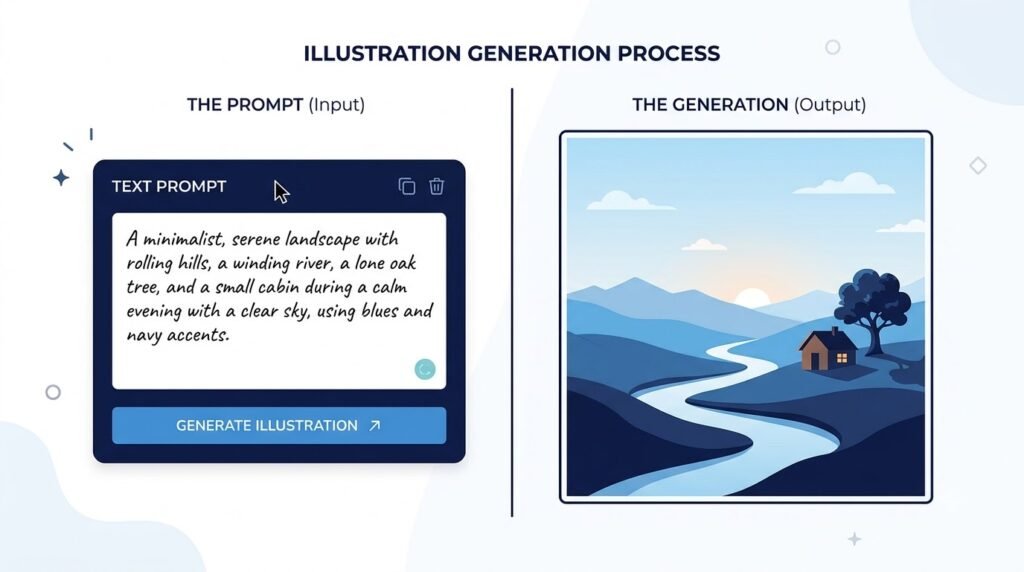
Generate Images
Modern versions of ChatGPT can create original images from text descriptions.
This is known as text-to-image generation.
For example:
Create a minimalist illustration of a student learning with AI.
Or
Generate a watercolor painting of a mountain landscape at sunrise.
The more descriptive your prompt, the closer the generated image is likely to match your vision.
Edit Existing Images
ChatGPT can also help modify images.
Depending on available features, you can ask it to:
- Remove objects
- Change backgrounds
- Extend an image
- Improve lighting
- Add design elements
- Transform the artistic style
- Resize or crop content
Example prompt:
Remove the background and replace it with a clean white studio backdrop.
Brainstorm Visual Ideas
Even if you don’t need ChatGPT to generate an image, it can help you plan one.
For example:
Suggest five thumbnail ideas for a YouTube video about artificial intelligence.
Or
Describe a professional hero image for an AI education website.
This can be especially helpful for designers, marketers, and content creators.
Best Practices for Image Prompts
Good image prompts usually include:
- Subject
- Style
- Lighting
- Colors
- Camera angle (if relevant)
- Background
- Mood
- Level of detail
Weak Prompt
Draw a dog.
Better Prompt
Create a realistic golden retriever sitting in a sunny park during autumn, photographed at eye level with soft natural lighting.
Providing more detail helps the AI understand what you’re looking for.
Privacy Tips for Images and Files
Before uploading any file or image, consider whether it contains sensitive information.
Avoid sharing:
- Passwords
- Financial records
- Medical records
- Confidential contracts
- Customer databases
- Government-issued identification
- Private business information unless appropriate safeguards are in place
If you need help with a sensitive document, remove or redact personal information whenever possible.
Security Reminder: Treat AI tools as collaborators, not secure archives. Only upload information that you’re comfortable sharing under the applicable privacy settings and terms of service.
Common Mistakes Beginners Make
- Uploading a file without explaining what they need.
- Expecting ChatGPT to automatically know their goal.
- Trusting every extracted detail without reviewing it.
- Sharing confidential information unnecessarily.
- Trying to analyze several unrelated files in one prompt.
A little context goes a long way. Tell ChatGPT what you’re trying to achieve, and you’ll usually receive more focused and useful assistance.
Try It Yourself
Practice with these simple tasks:
- Upload a PDF and ask for a one-page summary.
- Upload a spreadsheet and request the top three insights.
- Upload a chart and ask ChatGPT to explain the trends.
- Upload a screenshot and ask it to extract all visible text.
- Upload a draft document and request suggestions to improve clarity.
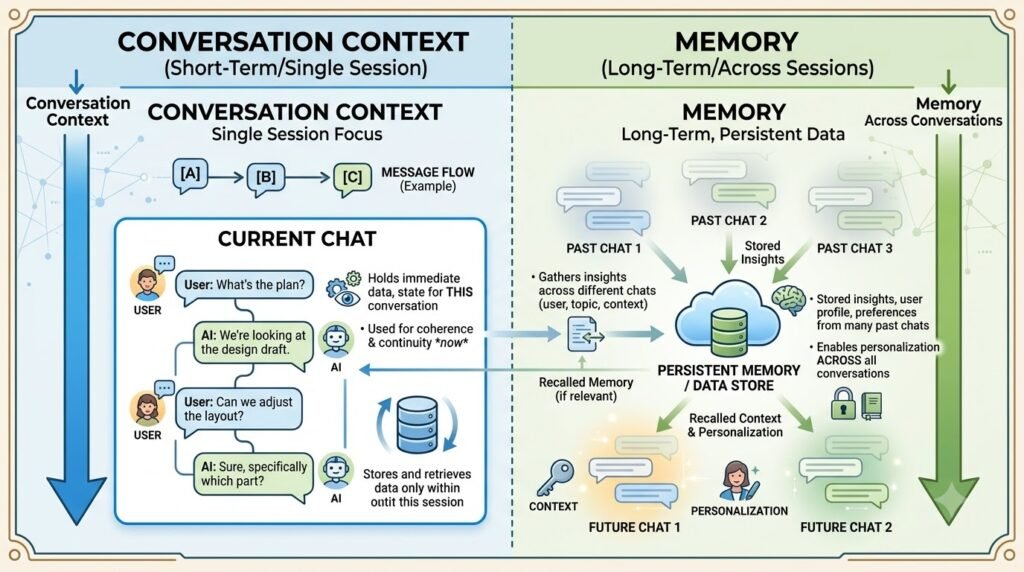
Understanding ChatGPT Memory
One of the biggest differences between using ChatGPT once and using it regularly is the Memory feature.
Without Memory, every new conversation starts with a blank slate. You need to repeat important information each time, such as your preferred writing style, your profession, or the type of projects you’re working on.
With Memory (where available and enabled), ChatGPT can remember certain details across conversations to provide more personalized and relevant responses.
Think of it as the difference between meeting someone for the first time and talking to someone who already knows your preferences.
Important: Memory is optional and can be managed through your settings. Its availability and capabilities may vary depending on your account, plan, and region.
How Memory Works
Memory allows ChatGPT to remember information that may be useful in future conversations.
For example, if you frequently ask for beginner-friendly explanations, ChatGPT may remember that preference and tailor future responses accordingly.
Similarly, if you regularly work on a long-term project, remembering key details can reduce the need to repeat the same context.
Memory is designed to make conversations more efficient—not to remember everything you ever say.
Examples of Helpful Memories
Here are some examples of information that can improve your experience if remembered:
- Your preferred writing style
- Your profession or role
- Your favorite programming language
- Your preferred response length
- Ongoing projects
- Learning goals
- Frequently used tools
For example:
“I’m learning Python.”
Future conversations about programming may then be tailored to your current skill level, helping explanations stay beginner-friendly.
What Memory Does Not Mean
It’s important to understand that Memory is not the same as conversation context.
Conversation Context
Within a single chat, ChatGPT remembers what has already been discussed so it can answer follow-up questions naturally.
For example:
You: Explain photosynthesis.
ChatGPT: (Explains the concept.)
You: Give me an example.
ChatGPT understands that “example” refers to photosynthesis because it’s using the context of the current conversation.
Memory
Memory works across conversations.
If you’ve chosen to let ChatGPT remember a preference, you won’t need to repeat it every time you start a new chat.
For example:
“I prefer concise answers with bullet points.”
Future responses may reflect that preference until you change or remove it.
Benefits of Memory
Memory can make ChatGPT feel more like a personal assistant.
Some benefits include:
More Personalized Responses
Instead of explaining your preferences repeatedly, ChatGPT can adapt automatically.
Saves Time
You spend less time repeating background information.
Better Long-Term Projects
If you’re working on an ongoing project, remembering important details can make future conversations more efficient.
More Consistent Responses
Preferences such as writing style, tone, or formatting can remain consistent across multiple chats.
Managing Your Memory
You’re in control of what ChatGPT remembers.
Depending on the available settings, you can:
- View saved memories
- Edit memories
- Remove individual memories
- Clear all memories
- Turn Memory on or off
If your goals or preferences change, you can update them at any time.
Tip: Review your saved memories occasionally to ensure they still reflect your current needs.
Best Practices for Using Memory
To make the most of Memory:
Save Long-Term Preferences
Good examples include:
- Preferred writing style
- Learning goals
- Professional role
- Favorite programming language
- Preferred units of measurement
These are details that are likely to remain useful over time.
Avoid Saving Temporary Information
Memory is most useful for long-term preferences, not short-lived details.
For example, instead of saving:
“I’m preparing for tomorrow’s biology exam.”
It’s better to simply mention that within the current conversation.
Review Saved Information Periodically
As your work and interests evolve, update or remove memories that are no longer relevant.
Projects: Organize Your Work
As you begin using ChatGPT more frequently, your chat history can become crowded with unrelated conversations.
One day you might be planning a vacation, the next you’re writing a report, and later you’re learning to code.
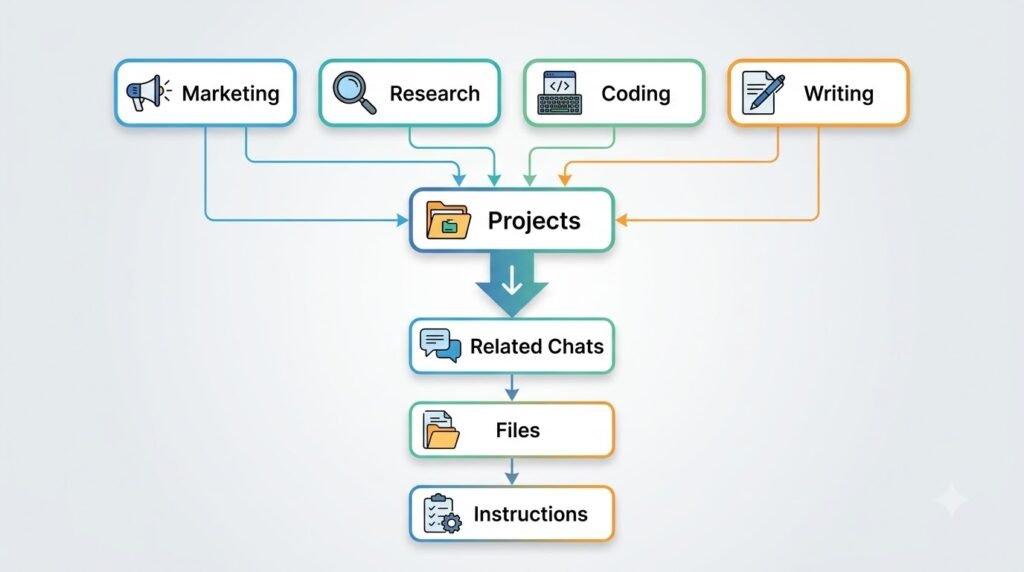
Projects help solve this problem by organizing related conversations, files, and instructions into dedicated workspaces.
Instead of treating ChatGPT as a collection of disconnected chats, Projects let you organize work around specific goals.
What Is a Project?
A Project is a workspace where you can group related conversations and resources.
Rather than scattering information across multiple chats, everything connected to a particular topic stays together.
Think of Projects like folders on your computer.
Each folder contains files related to one subject, making everything easier to find and manage.
Why Use Projects?
Projects help you:
- Stay organized
- Reduce repeated explanations
- Keep related files together
- Maintain context across conversations
- Manage long-term work more efficiently
This becomes increasingly valuable as you use ChatGPT for multiple purposes.
Real-World Project Examples
Student Project
A university student might create separate projects for:
- Biology
- History
- Computer Science
- Thesis Research
Each project contains relevant conversations, notes, uploaded files, and assignments.
Small Business Project
A business owner might organize projects such as:
- Marketing Campaigns
- Product Launches
- Customer Support
- Financial Planning
Instead of searching through dozens of unrelated chats, everything remains in one place.
Content Creation Project
A content creator could create separate projects for:
- Blog Articles
- YouTube Scripts
- Social Media Posts
- Newsletter Ideas
- SEO Research
This makes ongoing content production much easier to manage.
Software Development Project
Developers often organize work by application or client.
Each project may include:
- Code discussions
- Bug reports
- Documentation
- Architecture planning
- Feature requests
Keeping conversations together reduces context switching.
Working with Files Inside Projects
One of the strengths of Projects is that uploaded files remain associated with the work you’re doing.
For example, a research project might include:
- Research papers
- Notes
- Spreadsheets
- Presentation slides
- Draft reports
Instead of uploading the same documents repeatedly, your work stays organized within the project.
Project Instructions
Some versions of ChatGPT allow you to provide instructions specific to a project.
For example, in a writing project you might specify:
- Always write in plain English.
- Use Markdown formatting.
- Target beginners.
- Include practical examples.
- Keep paragraphs short.
These instructions help maintain consistency across conversations within that project.
Tips for Organizing Projects
As your number of projects grows, good organization becomes increasingly important.
Consider:
One Goal Per Project
Avoid combining unrelated work into a single project.
For example:
Instead of:
Work
Create separate projects for:
- Sales Reports
- Marketing
- Training
- Meeting Notes
Use Clear Names
Good project names make them easier to find later.
Examples:
- AI Blog Content
- 2026 Marketing Plan
- Python Learning
- MBA Research
- Product Launch
Archive Finished Projects
When a project is complete, consider archiving or cleaning it up if those options are available.
This helps keep your workspace organized.
Voice Conversations
Typing isn’t the only way to communicate with ChatGPT.
If Voice Mode is available on your account and device, you can have natural spoken conversations with ChatGPT.
Instead of typing each question, simply speak.
ChatGPT listens, processes your request, and responds using a natural-sounding voice.
For many users, this makes AI feel more conversational and accessible.
When Is Voice Mode Useful?
Voice conversations work particularly well for:
- Practicing a new language
- Brainstorming ideas while walking
- Hands-free cooking
- Interview preparation
- Learning difficult topics
- Accessibility needs
- Asking quick questions
Many people find speaking faster and more natural than typing.
Tips for Better Voice Conversations
To get better responses:
- Speak clearly.
- Ask one question at a time.
- Pause between topics.
- Follow up naturally.
- Correct misunderstandings immediately.
You don’t need to use perfect grammar—ChatGPT is designed to understand conversational language.
Custom GPTs
As you become more comfortable with ChatGPT, you may come across Custom GPTs.
These are specialized AI assistants designed for particular tasks.
Rather than starting every conversation from scratch, a Custom GPT comes with predefined instructions, knowledge, and behaviors.
What Is a Custom GPT?
A Custom GPT is a version of ChatGPT customized for a specific purpose.
For example:
- Travel Planner
- Resume Coach
- Coding Tutor
- Language Teacher
- Fitness Assistant
- Recipe Generator
Instead of explaining the same instructions repeatedly, the Custom GPT is already configured for that type of work.
When Should Beginners Use Custom GPTs?
If you’re new to ChatGPT, it’s perfectly fine to start with the standard chat interface.
As your needs become more specialized, Custom GPTs can save time by providing focused workflows and reusable instructions.
For example, if you’re regularly creating lesson plans, a teaching-focused Custom GPT may streamline the process.
Choosing Between Standard Chat and a Custom GPT
| Standard Chat | Custom GPT |
| General-purpose conversations | Specialized workflows |
| Flexible for many topics | Optimized for a specific task |
| Great for beginners | Helpful for repeated use cases |
| No setup required | May include predefined instructions or tools |
For most beginners, learning how to communicate effectively with the standard ChatGPT interface is the best first step. Once you’re comfortable with prompting and core features, Custom GPTs can help you work more efficiently on recurring tasks.
Key Takeaways
By now, you’ve learned how ChatGPT goes far beyond simple conversations:
- Memory personalizes your experience over time.
- Projects keep related work organized.
- Voice Conversations make AI more natural and accessible.
- Custom GPTs provide specialized assistants for recurring tasks.
Together, these features transform ChatGPT into a powerful productivity and learning platform rather than just a chatbot.
Real-World Ways to Use ChatGPT
One of ChatGPT’s greatest strengths is its versatility. Whether you’re studying for an exam, managing a business, creating content, or learning a new skill, ChatGPT can help you complete tasks more efficiently.
The key is understanding that ChatGPT is not a replacement for your expertise or judgment. Instead, it’s a tool that can help you think, create, learn, and solve problems more effectively.
In this section, we’ll explore practical ways different people use ChatGPT in their daily lives.
ChatGPT for Students
Students use ChatGPT as a learning companion rather than simply an answer generator.
Instead of asking ChatGPT to complete assignments for you, use it to deepen your understanding of the material.
Common Uses
- Explain difficult concepts
- Summarize textbooks
- Create study notes
- Generate practice quizzes
- Learn programming
- Improve writing
- Brainstorm project ideas
- Prepare for exams
- Understand research papers
Example Prompt
Explain Newton’s Laws of Motion using simple language and real-world examples. Then create five practice questions with answers.
Best Practice
Use ChatGPT to learn the reasoning behind an answer, not just the answer itself. This approach builds long-term understanding and supports independent learning.
ChatGPT for Teachers and Educators
Educators can save time on repetitive tasks while creating more engaging learning experiences.
Common Uses
- Create lesson plans
- Develop quizzes and worksheets
- Generate discussion questions
- Simplify complex topics
- Draft classroom emails
- Provide differentiated learning materials
- Brainstorm classroom activities
Example Prompt
Create a 45-minute lesson plan introducing renewable energy to middle school students. Include objectives, activities, and an assessment.
Best Practice
Always review AI-generated educational materials to ensure they align with your curriculum and learning objectives.
ChatGPT for Professionals
Professionals across many industries use ChatGPT to improve productivity and communication.
Common Uses
- Draft emails
- Summarize meetings
- Create reports
- Brainstorm presentations
- Organize projects
- Generate documentation
- Explain technical concepts
Example Prompt
Rewrite this project update to sound professional, concise, and suitable for senior management.
Best Practice
Treat ChatGPT as a first-draft assistant. Review, personalize, and verify important business communications before sharing them.
ChatGPT for Content Creators
Bloggers, YouTubers, podcasters, and social media creators often use ChatGPT to streamline their creative workflows.
Common Uses
- Brainstorm content ideas
- Create outlines
- Write scripts
- Draft blog posts
- Generate social media captions
- Improve headlines
- Plan content calendars
- Research topics
Example Prompt
Suggest 20 beginner-friendly YouTube video ideas about artificial intelligence. Group them by topic and explain why each idea would appeal to a new audience.
Best Practice
Use ChatGPT to accelerate ideation and drafting, but add your own expertise, experiences, and unique perspective to create original content.
ChatGPT for Small Business Owners
Running a business often means juggling marketing, customer service, operations, and planning. ChatGPT can help automate many routine tasks.
Common Uses
- Write product descriptions
- Draft marketing emails
- Create business plans
- Brainstorm advertising campaigns
- Develop customer support responses
- Analyze customer feedback
- Prepare meeting agendas
Example Prompt
Create a one-month social media content plan for a local coffee shop. Include post ideas, captions, and calls to action.
Best Practice
Review all customer-facing content for accuracy, brand voice, and legal compliance before publishing.
ChatGPT for Job Seekers
Looking for a new job involves many writing and research tasks. ChatGPT can assist throughout the process.
Common Uses
- Improve resumes
- Draft cover letters
- Prepare for interviews
- Practice common interview questions
- Research companies
- Refine LinkedIn profiles
- Negotiate job offers
Example Prompt
Review my resume for a software engineering role. Suggest improvements to highlight leadership, technical skills, and measurable achievements.
Best Practice
Use your own accomplishments and experiences. Avoid submitting AI-generated application materials without personalizing them.
ChatGPT for Developers
Developers frequently use ChatGPT as a coding assistant and learning resource.
Common Uses
- Explain code
- Debug errors
- Learn programming languages
- Generate sample code
- Understand documentation
- Review algorithms
- Improve readability
Example Prompt
Explain what this Python function does, identify any potential issues, and suggest improvements using best practices.
Best Practice
Test all generated code before using it in production. AI-generated code may contain bugs, security issues, or outdated approaches.
ChatGPT for Researchers
Researchers can use ChatGPT to organize information, generate summaries, and clarify complex concepts.
Common Uses
- Summarize literature
- Explain research methods
- Compare studies
- Brainstorm research questions
- Draft outlines
- Improve academic writing
- Organize references
Example Prompt
Summarize the main findings of these three research papers and identify common themes and research gaps.
Best Practice
Always read and cite original sources. ChatGPT should support your research process, not replace it.
ChatGPT for Everyday Life
You don’t need to be a student or professional to benefit from ChatGPT.
Common Uses
- Plan vacations
- Create shopping lists
- Organize schedules
- Learn new hobbies
- Translate text
- Plan meals
- Write invitations
- Compare products
- Understand current topics
Example Prompt
Plan a three-day family trip to Jaipur with a moderate budget. Include attractions, local food, and transportation tips.
Best Practices for Using ChatGPT
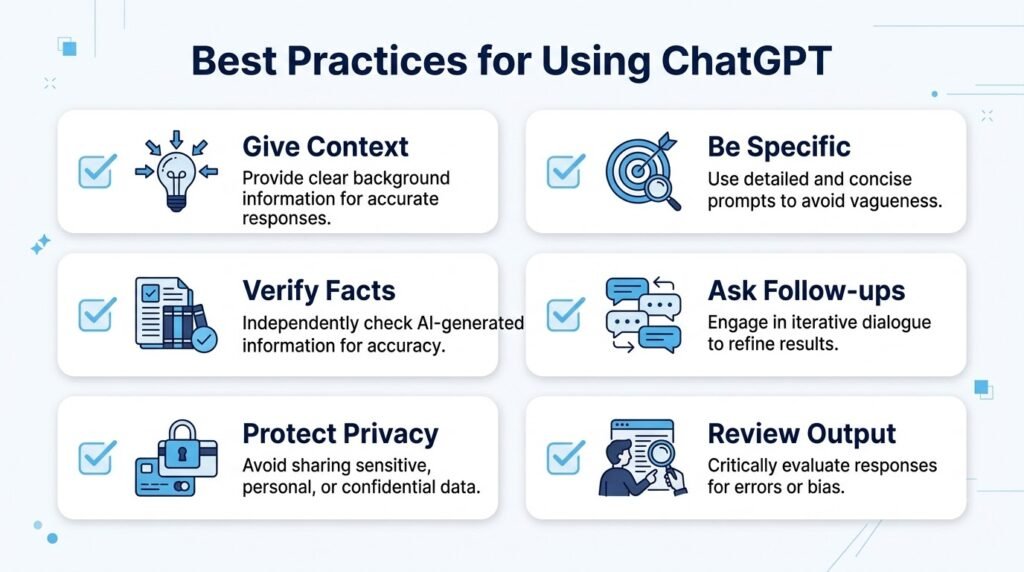
Using ChatGPT effectively is about more than writing good prompts. It’s also about developing habits that help you get accurate, useful, and trustworthy results.
1. Be Clear About Your Goal
Before asking ChatGPT a question, take a moment to think about what you’re trying to accomplish.
Instead of asking:
Help me with marketing.
Try:
Suggest five low-cost digital marketing strategies for a new online clothing store.
Clear goals usually produce clearer answers.
2. Give Enough Context
ChatGPT performs best when it understands the situation.
Helpful context may include:
- Your audience
- Your experience level
- Your budget
- Your deadline
- Your objectives
- Any important constraints
The more relevant context you provide, the better ChatGPT can tailor its response.
3. Ask Follow-Up Questions
You don’t have to accept the first answer.
Instead, continue the conversation.
For example:
- Can you simplify this?
- Give me more examples.
- Rewrite it in a friendlier tone.
- Turn this into a checklist.
- Explain why you recommended that approach.
Iterating often leads to significantly better results.
4. Verify Important Information
ChatGPT can make mistakes.
For important decisions involving:
- Health
- Finance
- Law
- Safety
- Academic research
Always verify information using reliable sources or qualified professionals.
Think of ChatGPT as a knowledgeable assistant—not an infallible authority.
5. Protect Sensitive Information
Avoid sharing confidential information unless it’s necessary and appropriate.
Examples include:
- Passwords
- Banking details
- Medical records
- Confidential contracts
- Customer databases
- Personal identification documents
If you need help with a sensitive document, consider removing identifying information first.
6. Experiment with Different Prompts
There is rarely only one “correct” prompt.
If the first response isn’t what you expected, try changing:
- The wording
- The level of detail
- The format
- The audience
- The tone
Prompting is an iterative process. Small adjustments can lead to dramatically different results.
7. Use ChatGPT as a Partner, Not a Replacement
ChatGPT works best when it complements your thinking.
Use it to:
- Brainstorm ideas
- Explore different perspectives
- Improve first drafts
- Learn new concepts
- Organize information
Final decisions, critical thinking, and professional judgment remain your responsibility.
Common Mistakes Beginners Make
Avoiding these common mistakes will help you get more value from ChatGPT.
Being Too Vague
Vague requests often produce generic answers.
Instead of:
Tell me about AI.
Try:
Explain artificial intelligence to a beginner using simple language and three real-world examples.
Expecting Perfect Accuracy
While ChatGPT is highly capable, it can occasionally generate incorrect or outdated information.
Always verify facts when accuracy is important.
Using ChatGPT as a Search Engine
Search engines are designed to help you find information on the web. ChatGPT is designed to help you understand, organize, and work with information through conversation.
In many cases, the two complement each other rather than replace one another.
Not Reviewing AI-Generated Content
Whether it’s an email, article, spreadsheet analysis, or presentation, review the output before using it.
Check for:
- Accuracy
- Tone
- Completeness
- Grammar
- Brand voice
- Context
Giving Up After One Response
Many beginners stop after the first answer.
Experienced users refine responses through follow-up questions and iterative prompting.
The best results often come from collaboration rather than one-time requests.
ChatGPT Limitations
Understanding what ChatGPT cannot do is just as important as understanding what it can do.
Some limitations include:
- It can generate incorrect information with confidence.
- It may misunderstand ambiguous prompts.
- Its knowledge and available features depend on the model and current product capabilities.
- It should not replace licensed professionals for medical, legal, financial, or safety-critical advice.
- AI-generated code, calculations, and analyses should be reviewed before use.
Recognizing these limitations helps you use ChatGPT responsibly and effectively.
Privacy and Security Tips
To use ChatGPT safely:
- Avoid sharing confidential personal or business information.
- Review your account’s privacy and personalization settings.
- Delete conversations you no longer need if appropriate.
- Use temporary chats when suitable and available.
- Be cautious when working with sensitive documents.
- Verify AI-generated advice before acting on it.
Good privacy habits are an important part of responsible AI use.
Frequently Asked Questions
Is ChatGPT free?
Yes. A free version is available, and paid plans offer additional capabilities and higher usage limits.
Can ChatGPT access the internet?
Some versions and models can browse the web when that feature is available. Others respond based on their training and any information you provide during the conversation.
Can ChatGPT generate images?
Yes. Supported versions of ChatGPT can generate and edit images from text prompts.
Can ChatGPT analyze PDFs and spreadsheets?
Yes. You can upload supported files and ask ChatGPT to summarize, analyze, explain, or transform their contents.
Does ChatGPT remember previous conversations?
Within a conversation, ChatGPT remembers the context of your chat. If Memory is enabled and supported, it can also remember certain preferences across conversations.
Can ChatGPT replace Google?
Not entirely. Search engines are excellent for finding websites and the latest information, while ChatGPT excels at explaining concepts, brainstorming ideas, and helping you work with information.
Is ChatGPT always accurate?
No. Like any AI system, ChatGPT can make mistakes. Verify important information using reliable sources.
Can I use ChatGPT for work?
Yes. Many professionals use ChatGPT for writing, planning, brainstorming, coding, and document analysis. Always review outputs before sharing or publishing them.
Conclusion
ChatGPT has made artificial intelligence accessible to millions of people by combining powerful language models with an intuitive conversational interface. Whether you’re learning a new subject, writing content, analyzing documents, generating images, or organizing long-term projects, it can become a valuable assistant when used thoughtfully.
The most successful ChatGPT users aren’t necessarily experts in AI—they’re people who communicate clearly, ask thoughtful questions, refine responses through conversation, and verify important information before acting on it.
As you become more familiar with its features, you’ll discover new ways to integrate ChatGPT into your daily workflow. Start with simple tasks, experiment with different prompts, and gradually explore advanced capabilities like file analysis, Projects, Memory, and image generation.
Remember that ChatGPT is most effective when it works alongside your knowledge, creativity, and critical thinking. Used responsibly, it can help you learn faster, work more efficiently, and unlock new possibilities in both your personal and professional life.

Continue Your AI Journey
Keep building your AI knowledge with these beginner-friendly guides.
-

150+ Best AI Tools by Category: Complete 2026 Directory & Workflow Guide
Learn more : 150+ Best AI Tools by Category: Complete 2026 Directory & Workflow Guide🕒 16-18 min read • Updated: Aug 2026 Introduction Artificial intelligence has transformed the way people work, learn,…
-

ChatGPT Complete Guide for Beginners (2026): Master AI Step-by-Step
Learn more : ChatGPT Complete Guide for Beginners (2026): Master AI Step-by-Step🕒 20-25 min read • Updated: Aug 2026 Introduction Introduction Artificial intelligence is changing how people learn, work,…
-

AI Resume Builder Guide (2026): How to Write ATS-Optimized Resumes in 10 Minutes
Learn more : AI Resume Builder Guide (2026): How to Write ATS-Optimized Resumes in 10 Minutes🕒 14-16 min read • Updated: July 2026 Introduction Creating a professional resume can be one of the…
-

AI for Students: 15 Proven Workflows to Study 2x Faster in 2026
Learn more : AI for Students: 15 Proven Workflows to Study 2x Faster in 2026🕒 15 min read • Updated: July 2026 Introduction School, college, and university life often means juggling assignments,…
-

AI for Small Business: 15 Practical Ways to Save Time & Scale Growth in 2026
Learn more : AI for Small Business: 15 Practical Ways to Save Time & Scale Growth in 2026🕒 12-15 min read • Updated: July 2026 Introduction Running a small business often means wearing multiple hats.…
-

7 Best AI Coding Assistants for Developers: Complete 2026 Review
Learn more : 7 Best AI Coding Assistants for Developers: Complete 2026 Review🕒 10-12 min read • Updated: July 2026 Introduction Artificial intelligence is transforming software development, making it easier…
Related Articles
Explore more guides and resources related to this topic.
-
ChatGPT Complete Guide for Beginners (2026): Master AI Step-by-Step
Learn more : ChatGPT Complete Guide for Beginners (2026): Master AI Step-by-Step🕒 20-25 min read • Updated: Aug 2026 Introduction Introduction Artificial intelligence is changing how people learn, work,…
-

Master Prompt Engineering in 2026: A Step-by-Step Beginner’s Guide
Learn more : Master Prompt Engineering in 2026: A Step-by-Step Beginner’s Guide🕒 18-20 min read • Updated: Aug 2026 Introduction Artificial intelligence (AI) tools like ChatGPT, Claude, Gemini, and…
-

Large Language Models (LLMs) Explained: The Complete 2026 Beginner’s Guide
Learn more : Large Language Models (LLMs) Explained: The Complete 2026 Beginner’s Guide🕒 14-16 min read • Updated: Aug 2026 Introduction Artificial Intelligence has become part of everyday life. Whether…
-

Best AI Image Generators in 2026: 10 Free & Paid Tools Tested
Learn more : Best AI Image Generators in 2026: 10 Free & Paid Tools Tested🕒 15 min read • Updated: July 2026 introduction Creating stunning images no longer requires years of design…
-

10 Best AI Chatbots in 2026: Tested & Ranked for Every Use Case
Learn more : 10 Best AI Chatbots in 2026: Tested & Ranked for Every Use Case🕒 10-12 min read • Updated: July 2026 introduction Artificial intelligence has made chatbots far more capable than…
-

ChatGPT vs Microsoft Copilot (2026): Tested, Pricing & Workflow Comparison
Learn more : ChatGPT vs Microsoft Copilot (2026): Tested, Pricing & Workflow Comparison🕒 10-12 min read • Updated: July 2026 Introduction Choosing between ChatGPT and Microsoft Copilot can be challenging,…
References
- OpenAI. ChatGPT. https://chatgpt.com/
- OpenAI Help Center. https://help.openai.com/
- OpenAI Platform Documentation. https://platform.openai.com/docs
- IBM. What is Artificial Intelligence? https://www.ibm.com/think/topics/artificial-intelligence
- IBM. What is Generative AI? https://www.ibm.com/think/topics/generative-ai
- Google Cloud. What is Generative AI? https://cloud.google.com/discover/what-is-generative-ai
- NVIDIA. What Is Generative AI? https://www.nvidia.com/en-us/glossary/generative-ai/
- NIST. AI Risk Management Framework. https://www.nist.gov/itl/ai-risk-management-framework
- OECD. AI Principles. https://oecd.ai/en/ai-principles
- UNESCO. Recommendation on the Ethics of Artificial Intelligence. https://www.unesco.org/en/artificial-intelligence/recommendation-ethics
- Harvard University CS50 AI. https://cs50.harvard.edu/ai/
- Stanford Human-Centered AI. https://hai.stanford.edu/
- DeepLearning.AI. https://www.deeplearning.ai/
Leave a Reply